
Sequence Control bar
To access this control bar:
-
Right-click a 3D window overlay - that has been assigned a Sequence Column in the Sheets or Project Data control bars, and select Sequence Controls.
-
The Sequence Control bar is also displayed automatically in some cases, such as when playing back a sequenced animation after connecting to a DTS schedule.
The Sequence control bar controls the playback of animated data the 3D window. Data is based on animation data synchronized with a DTS schedule.

The Sequence control bar
Use the Sequence control bar to:
-
Step forward and backward manually through an animation, step-by-step (according to the Step value).
-
Play an animation in forward or reverse direction, based on the M4DANI field value in underlying data.
-
Set the rate and step of your animation.
-
Determine the section to be animated by specifying dates in the Sequence control bar.
-
Easily view the actual calendar dates that relate to the animation currently being displayed.
Sequence Playback Controls
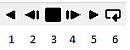
The following animation controls are available:
-
Play the animation in reverse order, according to the specified settings.
-
Rewind the animation by a single step ("step back").
-
Stop the animation.
-
Forward the animation by a single step ("step forward").
-
Play the animation in a forward direction.
-
Rewind and replay the animation.
Step is the number of frames to skip for each animation frame. If set to 2, for example, frames 1, 3, 5 , 7 and so on, will be played. The default value is 1, meaning all distinct animation frames (according to the values set in the M4DANI field) will be played in sequence (forward or reverse).
Rate represents the speed at which the animation is played.
Related topics and activities:
